BLOG ARTICLE
How to Make a Video for LinkedIn (7-Step Guide 2026)

Creating engaging LinkedIn videos can seem challenging, especially if you're new to video production or juggling a busy schedule. However, with the right tools and strategies, it's easier than you think to craft content that captures attention and sparks meaningful conversations.
In this guide, we’ll take you step-by-step through the process—from selecting the perfect video topic to editing and optimizing your content for LinkedIn, helping you create impactful videos even with limited time.
TL;DR
- 7-step process: Find video topic, keep production simple, efficient editing, craft engaging content, repurpose content, optimize for LinkedIn, post regularly
- Topic research: Use Answer the Public to discover industry questions, prioritize high search volume topics, repurpose blog posts/articles with Flarecut
- Production tips: Vertical format (9:16), maintain eye contact, use natural light or DIY soft lighting, record during morning/late afternoon
- Editing essentials: Jump cuts (Podsqueeze), custom subtitles (Podsqueeze, CapCut), speed up playback (Clipchamp, CapCut)
- Engagement strategies: Hook negation technique, speak to specific audience, ask questions to encourage interaction
- Repurposing: Transform YouTube/podcast content for LinkedIn, use AI tools (Podsqueeze) to generate clips, mix original and repurposed content
- Optimization: Turn off auto-captions, choose engaging thumbnail, write compelling caption with bold statement/question
- Posting schedule: 3-4 videos per week, best times: Monday/Tuesday/Thursday at 4pm, Wednesday at 2pm, Friday at 1pm
1. Find Your Video Topic
Your video’s success starts with finding the right topic. Videos that address real questions or challenges your audience faces are more likely to get views and engagement.
Here’s how to choose the right topic:
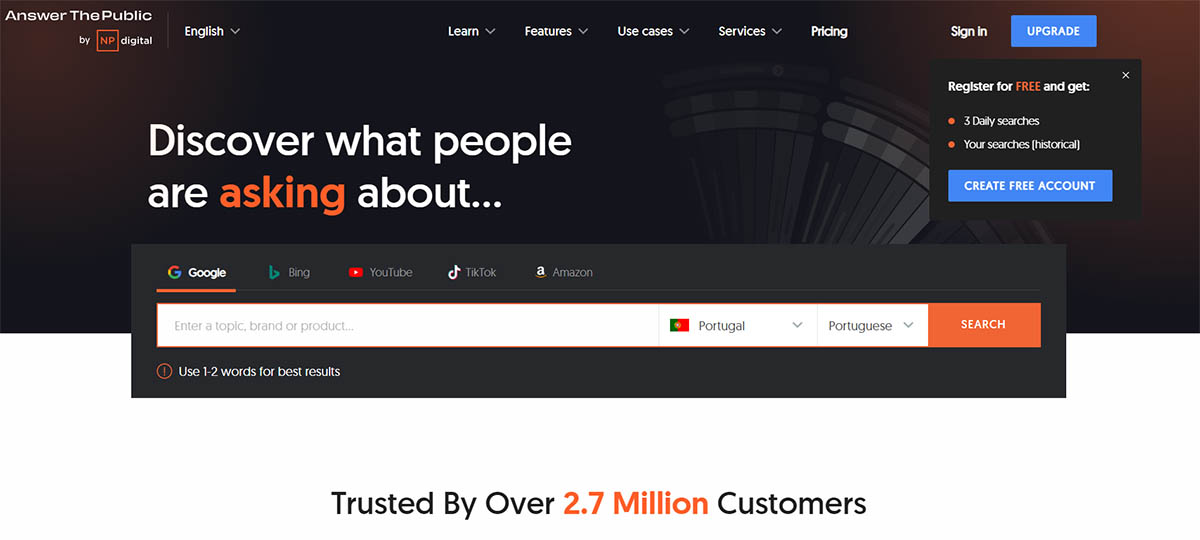
- Answer the Public: Use Answer the Public to discover what people are searching for in your industry. It shows common Google search queries related to your field, giving you insight into the questions your target audience is asking. This way, your video content aligns with what people want to know.
- Prioritize High Search Volume: Sort the questions by search volume to focus on topics that are in demand. This increases the chances that your videos will attract attention and offer value to a wide audience.
Leverage Tools for Easy Video Creation
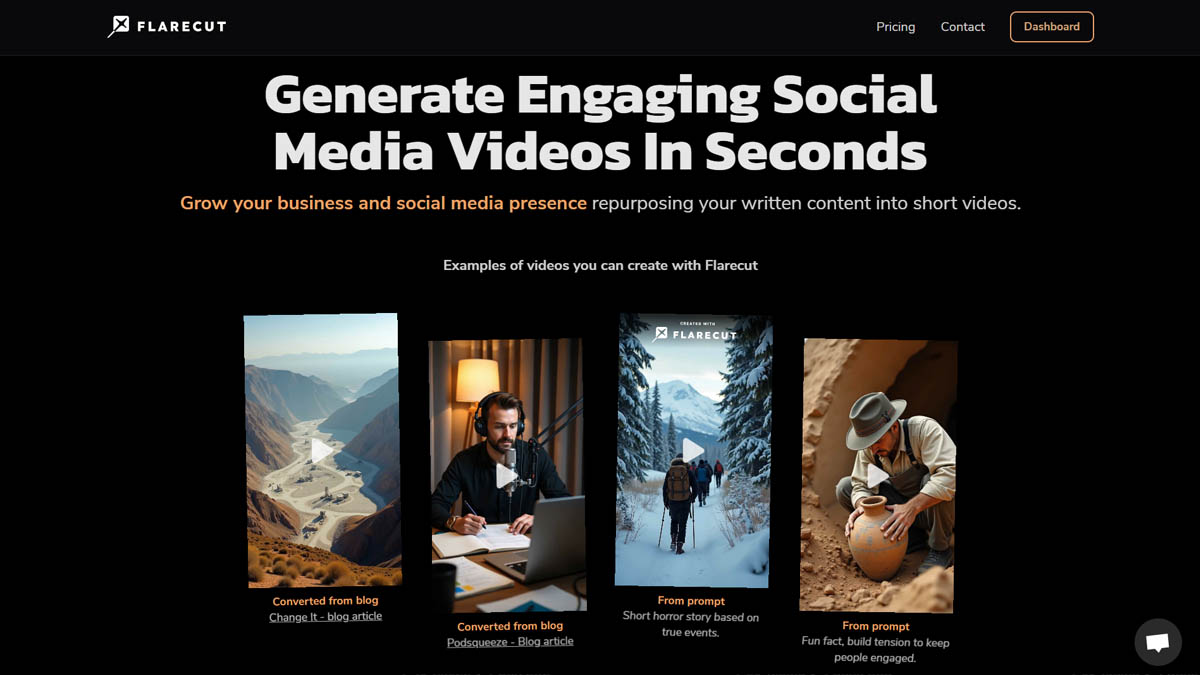
If you already create written content like blog posts, articles, or posts you can repurpose them into videos quickly using tools like Flarecut**.
Flarecut’s automatic video generation converts scripts and articles into short, engaging videos, perfect for LinkedIn’s short-form video feed. This is a great way to repurpose existing written content into dynamic, visual formats without needing to record from scratch, letting you effortlessly tap into LinkedIn’s growing video audience.
2. Keep Your Production Professional Yet Simple
You don’t need fancy equipment to produce high-quality videos for LinkedIn, but a few basic production techniques will make a big difference.
Recording Techniques:
-
Use Vertical Format: Record in a vertical format (9:16) to fit LinkedIn’s mobile-first audience. Most users scroll on their phones, so filming vertically ensures your content looks professional and fills the screen.
-
Maintain Eye Contact: Look directly into the camera lens, not at yourself on the screen. This creates a more personal connection with your audience, making your video feel engaging and authentic.
Lighting Made Simple:
-
Use Natural Light: Position yourself facing a window to take advantage of soft, natural light. This eliminates harsh shadows and enhances your appearance on camera.
-
DIY Soft Lighting: If natural light isn’t available, use a basic desk lamp with a white pillowcase or parchment paper draped over it (without touching the bulb). This softens the light and gives a clean, professional look to your video.
Actionable Tip: Record during the morning or late afternoon when natural light is softer, avoiding the harsh midday sun. It’s the easiest way to get flattering, professional lighting without any extra cost.
3. Efficient Editing for Beginners
Editing your video can seem intimidating, but with the right tools, it’s straightforward—even for beginners.
Editing Essentials:
-
Embrace Jump Cuts: Jump cuts are quick transitions between scenes that eliminate awkward pauses, making your video more dynamic. Tools like Podsqueeze magic edit feature can help you make these edits seamlessly by automatically removing silences, filler words while enhancing the overall audio quality.
-
Custom Subtitles: While LinkedIn offers auto-generated captions, creating your own subtitles using tools like Podsqueeze and CapCut ensures a more polished, professional appearance. You can customize the font, color, and size to match your brand’s style, making the video easier to follow, especially for viewers who scroll without sound.
-
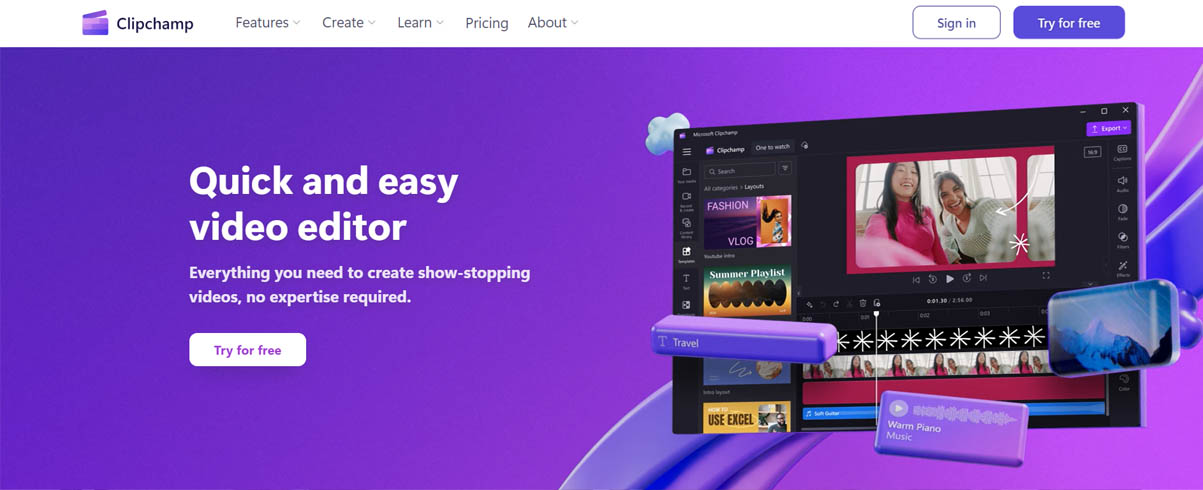
Speed Up Playback: If you tend to speak slowly, consider slightly speeding up your video to keep it concise and engaging. Most free beginner friendly video editing tools such as clipchamp and Capcut include these features.
4. Crafting Engaging Content
Creating content that resonates with your audience requires understanding their pain points and delivering solutions. Here’s how to make sure your content engages viewers right away.
Engaging from the Start:
-
Use the Hook Negation Technique: Start with a statement that contradicts a common belief. For example, say, “Most people think LinkedIn ads are too expensive—here’s why they’re wrong.” This grabs attention and encourages people to watch further.
-
Speak to a Specific Audience: Avoid being too general. Tailor your content to a specific niche, whether it’s small business owners or HR professionals. The more targeted your content, the more it will resonate with your ideal audience.
Encourage Interaction:
- Ask Questions: Encourage viewers to share their opinions by asking a question toward the end of your video. For example, “What’s been your biggest challenge with LinkedIn Ads? Comment below and let’s discuss.” This kind of open-ended question invites engagement and keeps the conversation going.
5. Repurposing and Reusing Content
Don’t let your videos live in isolation. Repurposing content from other platforms can save time and extend your reach.
How to Repurpose Effectively:
- Repurpose YouTube or Podcast Content: If you have existing videos from YouTube or podcasts, tweak them for LinkedIn by focusing on professional messaging. For example, shorten a YouTube tutorial on content creation into a 60-second LinkedIn video with the key points, catered to a business audience.

- Combine Original and Repurposed Content: Keep a mix of original videos that speak directly to LinkedIn’s audience and repurposed content from other platforms. This balance keeps your feed fresh while leveraging your existing content library.
Actionable Tip: Use AI tools like Podsqueeze to automatically generate clips from long videos, which can then be optimized for LinkedIn. These tools help you extract the most engaging moments and repackage them as concise, punchy videos.
6. Uploading and Optimizing for LinkedIn
Once your video is ready, how you upload and present it can affect its performance.
Optimizing for LinkedIn’s Platform:
-
Turn Off Auto-Captions: If you’ve added custom captions, make sure to disable LinkedIn’s auto-generated ones to avoid clutter and maintain a clean, consistent look.
-
Choose an Engaging Thumbnail: When uploading, pick a compelling frame from your video as the thumbnail. A visually interesting thumbnail increases the likelihood of people clicking to watch.
-
Strong Copy is Key: Write a compelling caption above your video to hook viewers in. Focus on articulating the value your video provides and consider starting with a bold statement or question to spark curiosity.

Actionable Tip: Use Answer the Public not only to find your topic but also to refine your caption. Address popular questions directly in your caption to increase relevance and attract more clicks.
7. Post Regularly to Build Visibility
Consistency is key on LinkedIn. Posting regularly ensures you stay visible and top of mind for your audience.
-
Aim for 3-4 videos per week: By maintaining a regular posting schedule, you increase your chances of getting discovered and build familiarity with your audience.
-
Engage with Comments: Respond to comments on your videos to foster relationships and show that you value your audience’s input.
Actionable Tip: According to Buffer The best times to post on LinkedIn for maximum engagement generally fall during regular work hours, particularly mid-morning, around lunch, and early afternoon. For specific days, Monday, Tuesday, and Thursday perform best at 4 p.m., Wednesday at 2 p.m., and Friday at 1 p.m. While engagement drops over the weekend, Saturday sees a slight uptick at 10 p.m., and Sunday at 7 a.m. Friday stands out as the best overall day to post.
Conclusion: Master LinkedIn Videos with These Practical Steps
Creating engaging LinkedIn videos doesn't require advanced technical skills or expensive equipment. By starting with the right topic, keeping your production simple but professional, and focusing on engaging, targeted content, you can create videos that not only stand out but also drive meaningful conversations. With consistent posting and smart use of editing tools, even beginners can succeed in making impactful LinkedIn videos.
Frequently Asked Questions (FAQs)
How do I make a professional LinkedIn video without expensive equipment?
You can create professional videos with minimal equipment:
- Vertical format: Record in 9:16 for mobile-first audience
- Natural lighting: Position yourself facing a window, or use DIY soft lighting (desk lamp with white pillowcase)
- Record timing: Morning or late afternoon for softer, flattering light
- Eye contact: Look directly into camera lens, not at screen
- Editing tools: Use free tools like Clipchamp, CapCut, or Podsqueeze for professional results
What's the best video format for LinkedIn?
Vertical format (9:16) is ideal for LinkedIn because:
- Most users scroll on mobile devices
- Vertical videos fill the screen and look professional
- Better engagement on mobile-first platform
- Matches how users consume content on LinkedIn
How do I find the right video topic for LinkedIn?
Effective topic research strategies:
- Answer the Public: Discover what people are searching for in your industry
- Prioritize high search volume: Focus on topics in demand
- Repurpose existing content: Use Flarecut to transform blog posts/articles into videos
- Address real questions: Create content that solves challenges your audience faces
- Refine with Answer the Public: Use it for both topics and caption ideas
What tools should I use to edit LinkedIn videos?
Recommended editing tools:
- Podsqueeze: Magic edit feature for jump cuts, removes silences and filler words, custom subtitles
- CapCut: Free editing tool with subtitle customization, speed adjustment
- Clipchamp: Beginner-friendly free tool with speed adjustment features
- Flarecut: Automatic video generation from scripts/articles, perfect for repurposing content
How do I make my LinkedIn videos more engaging?
Engagement strategies:
- Hook negation technique: Start with statement that contradicts common belief
- Speak to specific audience: Target niche (e.g., small business owners, HR professionals)
- Ask questions: Encourage viewers to share opinions in comments
- Custom subtitles: Make videos easier to follow, especially for viewers without sound
- Compelling caption: Write bold statement or question to spark curiosity
- Engaging thumbnail: Choose visually interesting frame from video
Can I repurpose content from other platforms for LinkedIn?
Yes, repurposing is highly effective:
- YouTube/Podcast content: Shorten and tweak for LinkedIn's professional audience
- Blog posts/Articles: Use Flarecut to convert written content into videos
- AI tools: Use Podsqueeze to automatically generate clips from long videos
- Mix content: Balance original LinkedIn-specific videos with repurposed content
- Focus on professional messaging: Adapt content to business audience
How often should I post LinkedIn videos?
Recommended posting frequency:
- 3-4 videos per week: Maintains visibility and builds familiarity
- Best posting times:
- Monday, Tuesday, Thursday: 4 p.m.
- Wednesday: 2 p.m.
- Friday: 1 p.m. (best overall day)
- Saturday: 10 p.m. (slight uptick)
- Sunday: 7 a.m.
- Engage with comments: Respond to foster relationships and show you value audience input
How do I optimize my LinkedIn video for maximum engagement?
Optimization strategies:
- Turn off auto-captions: If you've added custom captions, disable LinkedIn's auto-generated ones
- Choose engaging thumbnail: Pick compelling frame from video
- Write strong caption: Articulate value, start with bold statement or question
- Use Answer the Public: Address popular questions in caption to increase relevance
- Custom subtitles: Professional appearance, easier to follow, brand consistency
- Post at optimal times: Use best posting times for maximum engagement
What's the ideal video length for LinkedIn?
LinkedIn video best practices:
- Short-form content: LinkedIn favors concise, engaging videos
- 60-second videos: Ideal for repurposed content from longer formats
- Key points focus: Extract most engaging moments for LinkedIn audience
- Keep it concise: Speed up playback if needed to maintain engagement
- Mobile-first: Shorter videos perform better on mobile devices
Do I need to show my face in LinkedIn videos?
No, you don't need to show your face:
- Faceless options: Use Flarecut to create videos from scripts/articles with AI voiceovers
- Screen recordings: For tutorials or software demonstrations
- Stock footage: Use visuals to tell your story
- Focus on value: Content quality matters more than showing your face
However, face-to-camera videos can create more personal connections if you're comfortable.
How do I create subtitles for LinkedIn videos?
Subtitle creation options:
- Custom subtitles: Use Podsqueeze or CapCut for polished, professional appearance
- Customization: Match font, color, and size to your brand style
- Turn off auto-captions: Disable LinkedIn's auto-generated captions if using custom ones
- Accessibility: Makes videos easier to follow, especially for viewers without sound
- Professional look: Custom subtitles look more polished than auto-generated
What makes a good LinkedIn video caption?
Effective caption strategies:
- Compelling hook: Start with bold statement or question to spark curiosity
- Articulate value: Clearly explain what viewers will gain from watching
- Use Answer the Public: Address popular questions directly in caption
- Encourage engagement: Ask questions or invite comments
- Professional tone: Match LinkedIn's business-focused environment
- Keep it concise: Get to the point quickly, mobile users scroll fast
Can I use AI tools to create LinkedIn videos?
Yes, AI tools are highly effective:
- Flarecut: Automatic video generation from scripts/articles, perfect for repurposing
- Podsqueeze: AI-powered editing, removes silences/filler words, generates clips
- Answer the Public: AI-driven topic research and question discovery
- Time-saving: Automate parts of content creation process
- Professional quality: AI tools help create polished videos without advanced skills
AI tools are especially useful for faceless videos and repurposing existing content.